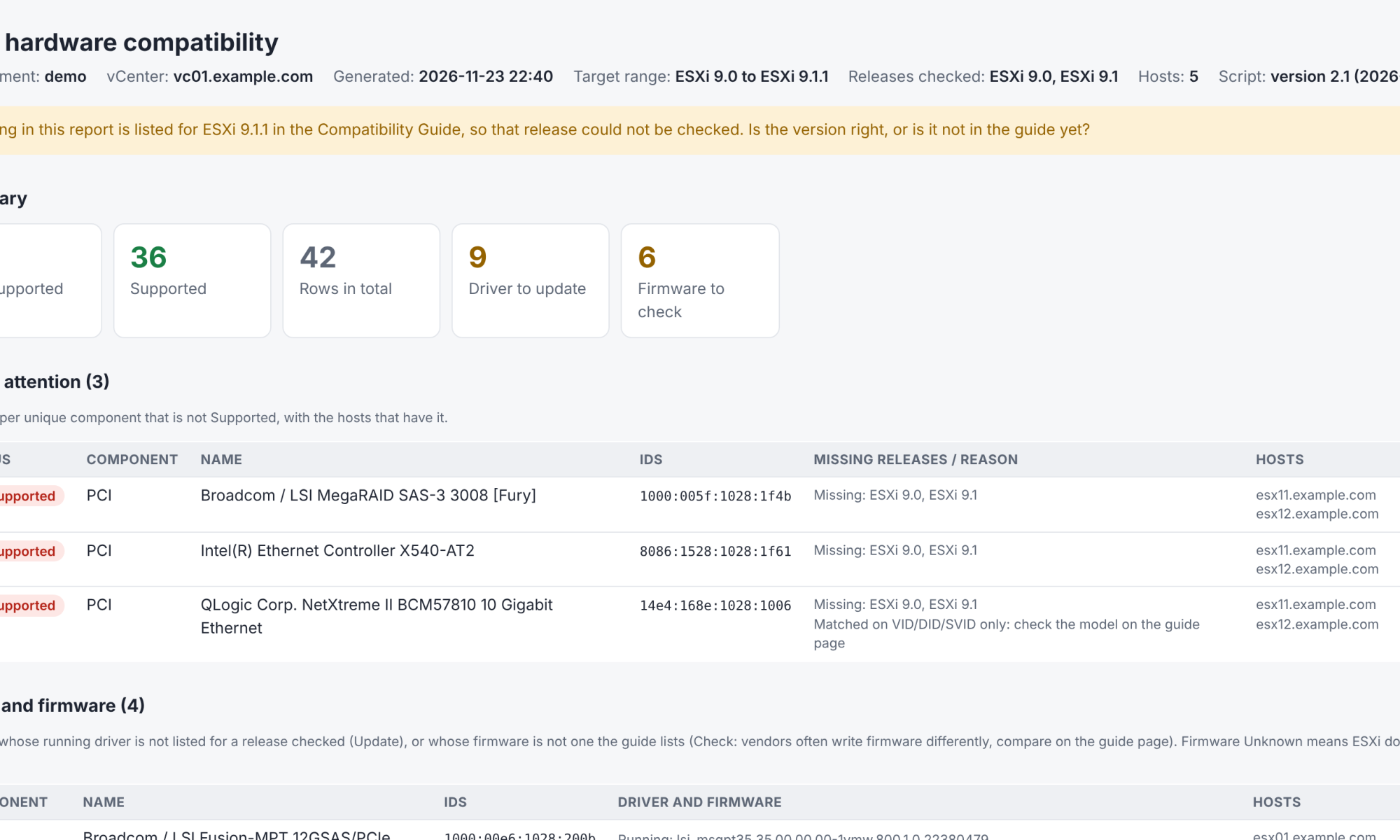
Before every ESXi upgrade the same question comes back: is all the hardware in these hosts still supported on the version we want to go to? Checking ESXi hardware compatibility by hand means opening the Broadcom Compatibility Guide, looking up the server model, the CPU, every NIC, every HBA and, for vSAN, every disk, and doing that for every host. On a few clusters that is an afternoon of copying PCI IDs.
I wrote a PowerCLI script that does it for me. Get-EsxiHardwareCompatibility.ps1 reads the hardware of every host from vCenter, looks every component up in the Broadcom Compatibility Guide and tells you per component whether it is supported on the ESXi range you give it, for example 9.0 up to 9.1.1. Since version 2.1 it also compares the driver and firmware each device runs with what the guide lists for every release in that range. You get a table in PowerShell, a CSV for Excel and an HTML report you can attach to the change.
The guide stays the source of truth. However, the guide often supports a device only with a specific driver and firmware version. The script now compares driver and firmware versions too, but ESXi doesn’t report every firmware and vendors write versions differently. So open the guide link of every row you depend on before you upgrade, certainly where the script says
CheckorUnknown.
Why a script for ESXi hardware compatibility
vSphere Lifecycle Manager can run a hardware compatibility check, but it checks a cluster against the image you set on it. When I take over an environment or plan an upgrade over several versions, I want a broader answer first, before I touch any image: is the server, its CPU and every network and storage controller listed for the releases I am aiming for, on every host in vCenter, in one report I can hand to the customer.
So that is what this script gives you: an ESXi hardware compatibility report for the whole vCenter. It only reads and changes nothing in vCenter or on the hosts.
What the ESXi hardware compatibility check covers
One row per component per host. The Component column says what the row is:
| Component | What | Guide section | Matched on |
|---|---|---|---|
| Server | Server model | Systems / Servers | Exact model name, then the host’s CPU series |
| CPU | Processor | CPU Series | Exact CPUID signature (family, model, stepping) |
| PCI | Ethernet, FC, InfiniBand, RAID, SAS, SATA, NVMe controllers | IO Devices | VID / DID / SVID / SSID |
| vSAN controller | Storage controllers of vSAN hosts | vSAN I/O Controller | VID / DID / SVID / SSID |
| vSAN NVMe | NVMe drives of vSAN hosts | vSAN SSD | VID / DID / SVID / SSID |
| vSAN disk | Local SAS/SATA SSDs and HDDs of vSAN hosts | vSAN SSD / HDD | Model number |
The script only adds vSAN rows for hosts in a cluster with vSAN enabled. A local disk outside vSAN does not need to be in the guide. With -VsanCheck Always you can check them anyway, for example before you enable vSAN on a cluster.
Nested ESXi hosts in a lab get NotApplicable for their virtual NICs and disks, because those are never in the guide. However, the script still checks the CPU of a nested host, because the CPUID of the physical CPU passes through.
Run the ESXi hardware compatibility check
You need PowerShell 7 (or Windows PowerShell 5.1), the VCF.PowerCLI module, a vCenter account with read access, and HTTPS access to compatibilityguide.broadcom.com from the machine where you run it.
Install-Module VCF.PowerCLI -Scope CurrentUser

# Is all hardware supported on ESXi 9.0 up to 9.1.1?
$r = .\Get-EsxiHardwareCompatibility.ps1 -VCenter vc01.example.com -MinEsxiVersion 9.0 -MaxEsxiVersion 9.1.1 `
        -HtmlPath '%USERPROFILE%\Reports\{env}-hardware-{date}.html'
At the end the script prints a summary per component and status. This is a demo inventory of five Dell hosts: three PowerEdge R650 in a vSAN cluster and two older R640 in a second cluster. The guide results are real lookups I did on 23 November 2026:
Target ESXi range: ESXi 9.0 to ESXi 9.1.1
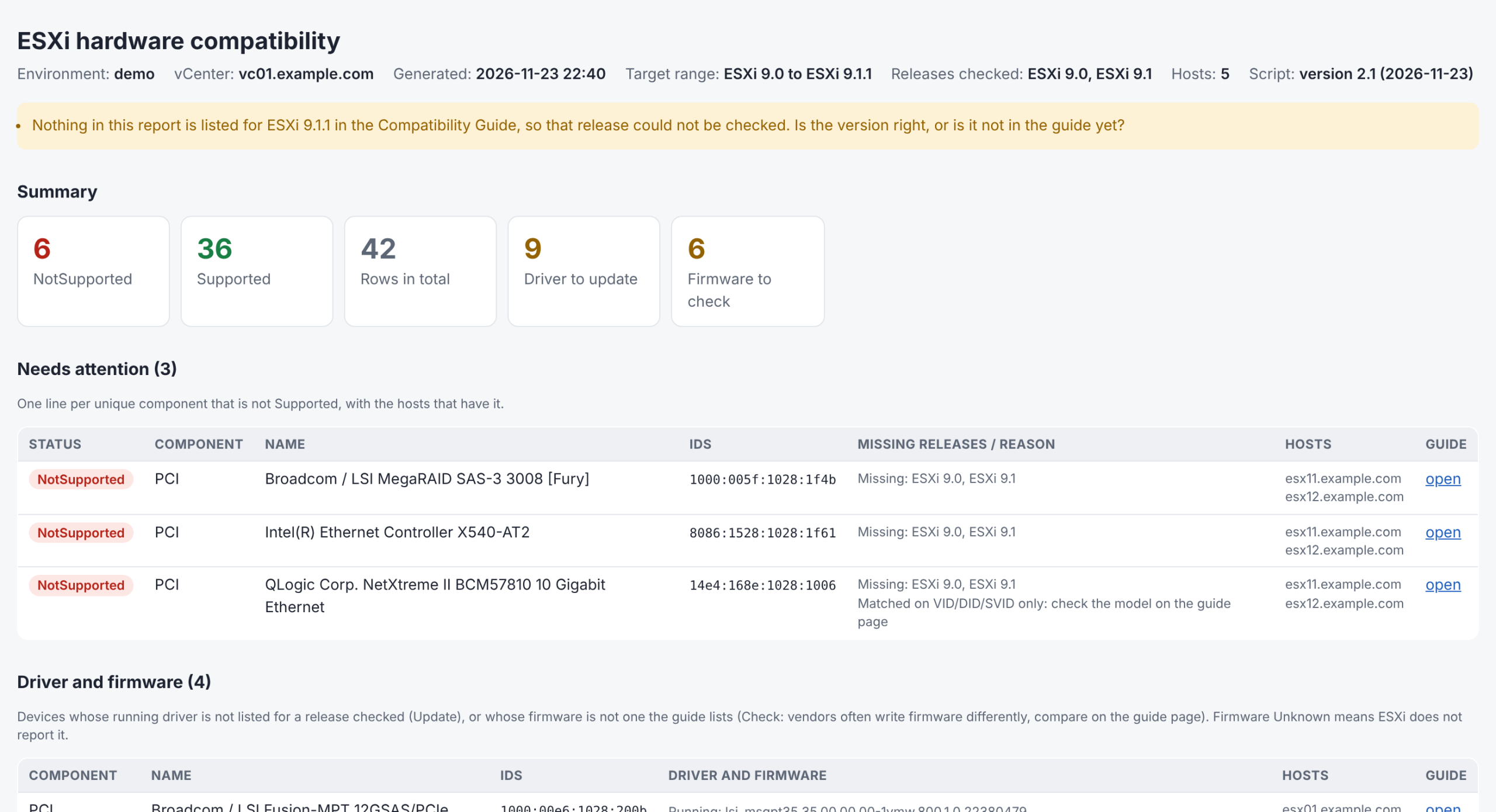
WARNING: Nothing in this report is listed for ESXi 9.1.1 in the Compatibility Guide, so that release could not be checked. Is the version right, or is it not in the guide yet?
Releases checked: ESXi 9.0, ESXi 9.1
Comparing drivers and firmware with the Compatibility Guide detail pages ...
42 rows, 5 host(s), 14 Compatibility Guide lookup(s).
  CPU, Supported                 5
  PCI, NotSupported              6
  PCI, Supported                 17
  Server, Supported              5
  vSAN controller, Supported     3
  vSAN disk, Supported           6
Driver and firmware (26 rows):
  Driver OK                      11
  Driver Update                  9
  Firmware Check                 6
  Firmware NoData                5
  Firmware OK                    9
  Firmware Unknown               6
What the ESXi hardware compatibility run tells you
Three things stand out. First of all, the warning: on the day I ran it, the guide listed ESXi 9.0 and 9.1 but nothing for 9.1.1 yet. The script tells you that instead of silently marking everything as supported. Second, six PCI rows are not supported on 9.x. Third, nine rows need another driver. I come back to that in the next section. To see which ones, filter the output to what needs attention, one line per unique device:
$r | Where-Object Status -notin 'Supported', 'NotApplicable' |
    Sort-Object Component, Name, VID, DID, SVID, SSID -Unique |
    Format-List Name, Status, MissingReleases, Driver
Name : Broadcom / LSI MegaRAID SAS-3 3008 [Fury]
Status : NotSupported
MissingReleases : ESXi 9.0, ESXi 9.1
Driver : lsi_mr3
Name : Intel(R) Ethernet Controller X540-AT2
Status : NotSupported
MissingReleases : ESXi 9.0, ESXi 9.1
Driver : ixgben
Name : QLogic Corp. NetXtreme II BCM57810 10 Gigabit Ethernet
Status : NotSupported
MissingReleases : ESXi 9.0, ESXi 9.1
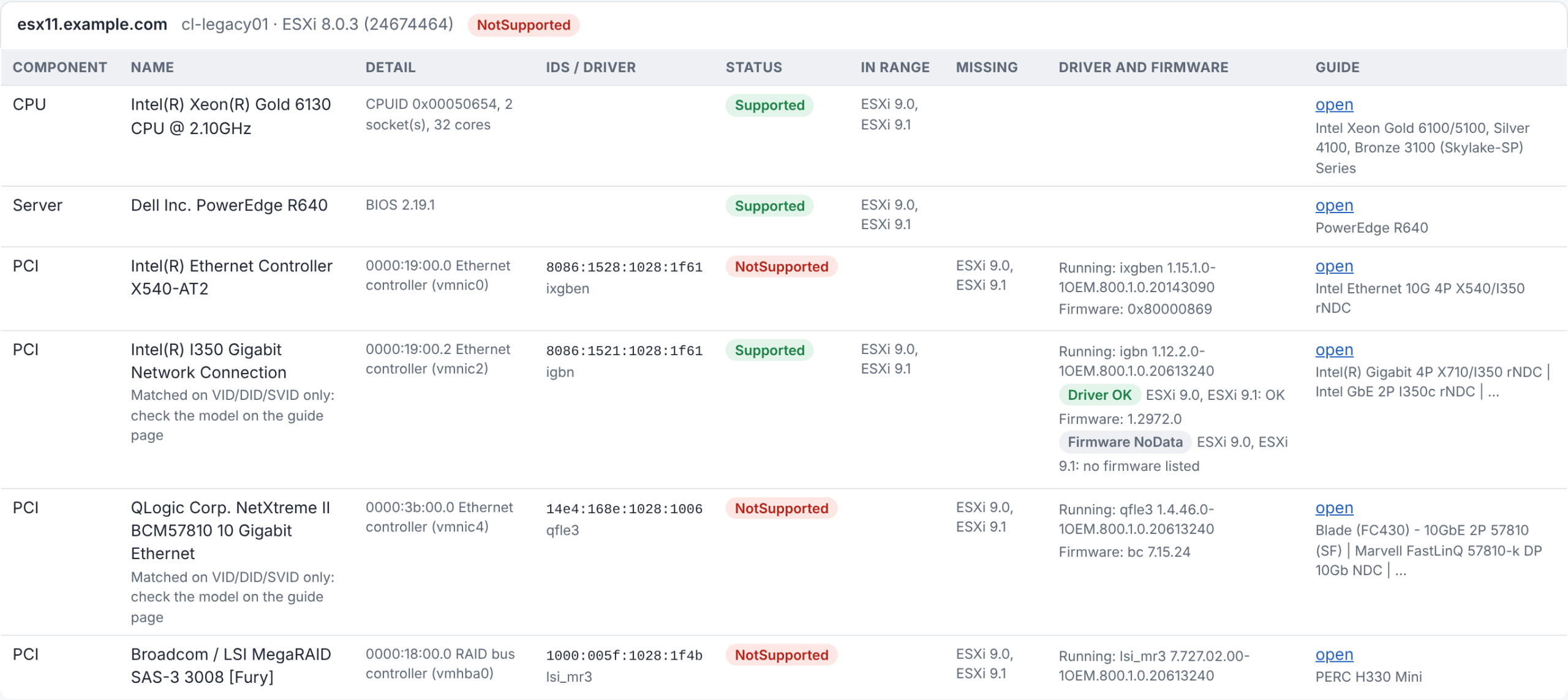
Driver : qfle3So the R640 server and its Skylake CPU are fine on 9.0 and 9.1, but the PERC H330 Mini, the X540/I350 rNDC and the QLogic 57810 stop at ESXi 8.0 U3 (the X540 even at 7.0 U3). Those hosts need new cards before they can go to 9.x. That is exactly the kind of finding you want before the upgrade weekend, not during it. And if the fix turns out to be a new system board instead of a new card, back up the ESXi TPM recovery key first.
Driver and firmware per release
A device in the guide is not the full story. Broadcom supports a NIC or HBA on a release with specific driver versions and firmware, and those lists differ per release. Since version 2.1 the script checks that too. For every NIC, storage controller and vSAN disk that is in the guide, it reads from the host:
- the driver version of the loaded VMkernel module (
esxcli system module get); - the firmware, where ESXi reports it: NICs, Fibre Channel HBAs, NVMe drives and the revision of SAS/SATA disks.
Then it opens the guide’s detail page of the matching entry and compares both with what the guide lists for each release in your range. To see what to do, filter on the rows that need an update or a check:
$r | Where-Object { $_.DriverStatus -eq 'Update' -or $_.FirmwareStatus -in 'Check', 'Unknown' } |
    Sort-Object Name, DriverVersion, Firmware -Unique |
    Format-List Name, DriverVersion, DriverCheck, Firmware, FirmwareStatus, FirmwareCheck
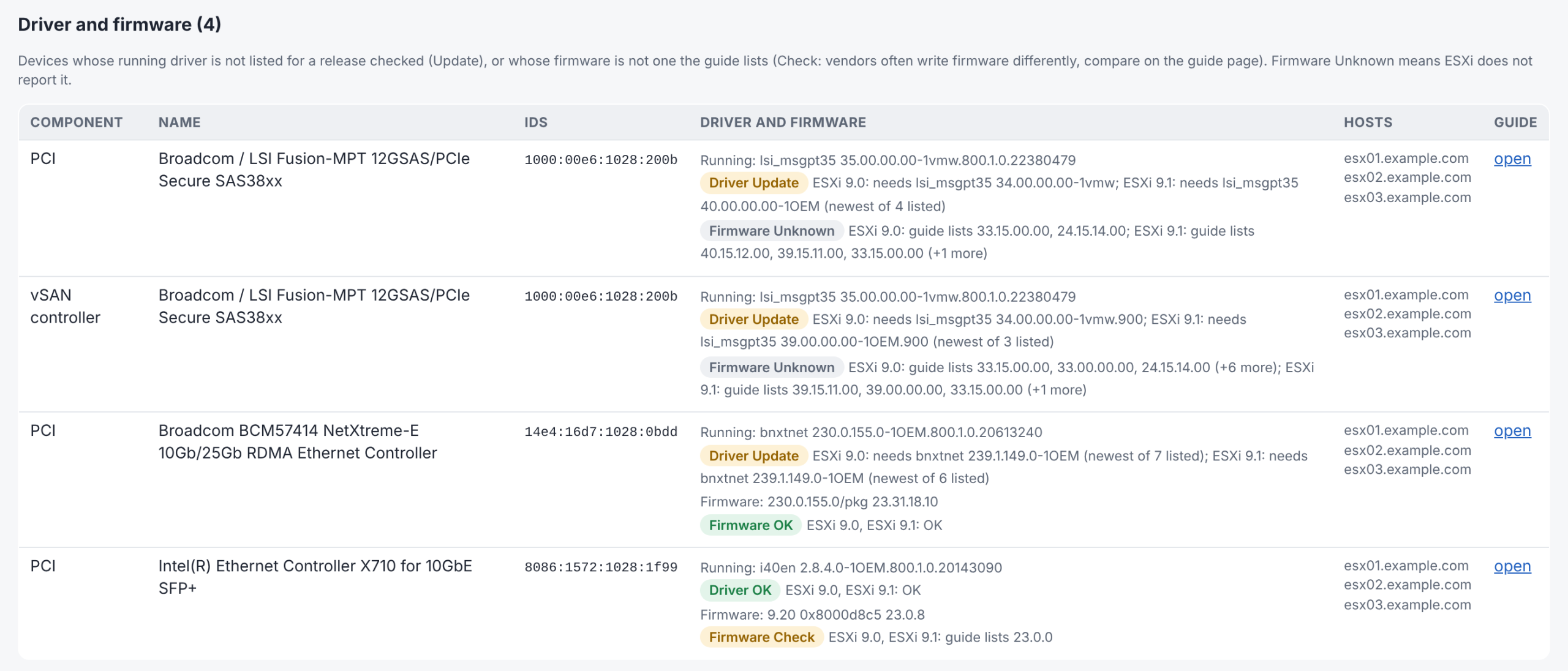
Name : Broadcom / LSI Fusion-MPT 12GSAS/PCIe Secure SAS38xx
DriverVersion : 35.00.00.00-1vmw.800.1.0.22380479
DriverCheck : ESXi 9.0: needs lsi_msgpt35 34.00.00.00-1vmw; ESXi 9.1: needs lsi_msgpt35 40.00.00.00-1OEM (newest of 4 listed)
Firmware :
FirmwareStatus : Unknown
FirmwareCheck : ESXi 9.0: guide lists 33.15.00.00, 24.15.14.00; ESXi 9.1: guide lists 40.15.12.00, 39.15.11.00, 33.15.00.00 (+1 more)
Name : Broadcom BCM57414 NetXtreme-E 10Gb/25Gb RDMA Ethernet Controller
DriverVersion : 230.0.155.0-1OEM.800.1.0.20613240
DriverCheck : ESXi 9.0: needs bnxtnet 239.1.149.0-1OEM (newest of 7 listed); ESXi 9.1: needs bnxtnet 239.1.149.0-1OEM (newest of 6 listed)
Firmware : 230.0.155.0/pkg 23.31.18.10
FirmwareStatus : OK
FirmwareCheck : ESXi 9.0, ESXi 9.1: OK
Name : Intel(R) Ethernet Controller X710 for 10GbE SFP+
DriverVersion : 2.8.4.0-1OEM.800.1.0.20143090
DriverCheck : ESXi 9.0, ESXi 9.1: OK
Firmware : 9.20 0x8000d8c5 23.0.8
FirmwareStatus : Check
FirmwareCheck : ESXi 9.0, ESXi 9.1: guide lists 23.0.0How to read the driver check
The driver and firmware lists come from the real guide entries; the running versions are demo values. How I read this:
- BCM57414: the running bnxtnet driver is not listed for 9.x.
DriverChecktells you which version to put in your vLCM image. - HBA355i:
lsi_msgpt35is an inbox driver. ESXi 9.0 comes with its own build (34.00.00.00-1vmw), so for 9.0 the “update” happens with the upgrade itself. For 9.1 the newest listed driver is an async OEM driver. The controller firmware isUnknownbecause ESXi doesn’t report it for SAS and RAID controllers: check it in the iDRAC. - X710: the driver is fine, but the firmware is
Check. ESXi reports the NVM version and the Dell package version together, and the guide lists Dell’s package version 23.0.0. So 23.0.8 is close, but not what the guide lists. Exactly the kind of row to open on the guide page.
DriverStatus is OK, Update, Unknown (the host did not report a version) or NoData (the guide lists no driver for that release). FirmwareStatus is OK, Check, Unknown or NoData. Neither of them changes Status: a device can be Supported on 9.0 and still need another driver.
The ESXi hardware compatibility report in HTML has its own “Driver and firmware” section, with one line per device and running version, and two extra summary cards:
If you only want the hardware check, -SkipDriverCheck turns all of this off: no extra esxcli calls and no guide detail pages.
The HTML report
With -HtmlPath you get one self-contained HTML file, with no external scripts or fonts, so you can mail it or attach it to a change. It starts with the target range, the warnings of the run, summary cards per status (plus drivers to update and firmware to check) and a “Needs attention” table with one line per unique component, the hosts that have it and a link to the guide page.
Below that there is one section per host. The report expands hosts with a problem and collapses the others. Every row shows the PCI IDs, the driver in use, the releases in range, the missing releases, the driver and firmware check and the guide entry it matched:
In addition, there is a filter box that searches host, device name, IDs, driver, firmware and releases, and the report follows the light or dark setting of your browser.
ESXi hardware compatibility status values
| Status | Meaning |
|---|---|
| Supported | The guide lists it for every ESXi release in the range |
| Partial | The guide lists it for some releases in the range; MissingReleases says which |
| NotSupported | The guide has it, but for no release in the range |
| Found | No range given: SupportedReleases lists all releases |
| NotFound | No matching entry. Open the link and search by hand |
| NotApplicable | Virtual hardware, never in the guide |
| LookupFailed | The guide could not be reached; Message has the error |
“Every release in the range” means every release in that range that the guide lists for at least one component in the report. The guide has no separate list of ESXi releases, so that is the best the script can do, and it warns when the lowest or highest version of your range is listed for nothing.
How the lookups work
The script uses the same web API as the guide’s own web pages (POST /compguide/programs/viewResults). William Lam documented that API, and the PCI and vSAN SSD lookups are based on his functions. It is not an official, documented API, so Broadcom can change it. If every row suddenly shows LookupFailed or NotFound, that is the first thing to suspect.
A few details that matter when you read the results:
- PCI devices first: the script searches on all four IDs. Many guide entries leave the subdevice ID empty (meaning any), so when the exact search finds nothing, the script searches again without it.
HclMatchthen saysWithoutSSID, and you should check on the guide page that the model is right. In the demo the I350 ports and the QLogic 57810 matched that way. - CPU: the script matches the exact CPUID signature the host reports, for example
0x000606A6for Ice Lake. Several CPU series share one signature (Gold 6300 and Platinum 8300 are both Ice Lake), so the script narrows down on the model number: a Gold 6338 becomes the “6300” series. - Server: the guide lists a server once per CPU series. The script keeps only the entries with the host’s CPU series, so a server can be
Partialwhen the model is supported on 9.1 with one CPU generation but not with yours. - vSAN disks: the script searches by model number. ESXi often reports an OEM suffix: the demo hosts report
MZILT960HBHQ0D3where the guide saysMZILT960HBHQ-00007. When the full number finds nothing, the script tries again without the last three characters andHclMatchsaysKeyword.
Driver and firmware lookups
- Driver and firmware come from the detail page of the matching entry (
POST /compguide/programs/viewDetails). It lists per release the driver name and version and the firmware. The host reports the full driver build (2.8.4.0-1OEM.800.1.0.20143090) and the guide only the version (2.8.4.0-1OEM), so the script compares on that prefix. A card like the BCM57414 has several drivers in the guide (bnxtnet and bnxtroce); the script only compares the one the host uses. - One lookup per unique component. The script looks up the same NIC in twenty hosts only once, so even a large cluster costs few requests. The demo needed 14 lookups for 42 rows.
What it does not check
Be honest with yourself about what a green report means:
- Firmware of RAID/SAS controllers and the server BIOS. ESXi doesn’t report the controller firmware (
Unknown), and the BIOS version is shown but not compared. Use the iDRAC, iLO or the hardware support manager in vLCM. - Driver features and restrictions. A guide entry can limit a driver to some features, such as RDMA, or add notes. The script compares versions only.
- GPUs and accelerators. They have their own guide sections, so the script skips them by default.
-DeviceClass Display, 3Dat least lists them. - SAN arrays, local disks outside vSAN, USB and SD boot devices. Arrays are in the Storage/SAN section per model and firmware.
- vSAN ReadyNode, ESA/OSA tier and memory tiering. The guide entry shows the tier of a vSAN disk, but the script does not check that it fits your vSAN architecture.
VCF: credentials from SDDC Manager
In VCF environments, I don’t want to type the vCenter SSO password. Instead, with -UseSddcCredentials the script reads it from the SDDC Manager vault (that account needs the ADMIN role). It also uses the shared environment config of my PowerCLI repository, one JSON file per environment, so a run per customer or lab becomes one line:
.\Get-EsxiHardwareCompatibility.ps1 -Environment lab1 -UseSddcCredentials -MinEsxiVersion 9.0 -MaxEsxiVersion 9.1.1 `
    -HtmlPath '%USERPROFILE%\Reports\{env}-hardware-{date}.html' -CsvPath '%USERPROFILE%\Reports\{env}-hardware-{date}.csv'
The script never stores or prints a password. Without the vault it takes -Credential, a user or an Export-Clixml credential file from the config, or asks with Get-Credential. And if you are offline, -SkipHclLookup gives you just the hardware inventory with all PCI IDs, which you can then check by hand.
A shout-out to William Lam
This script stands on the shoulders of William Lam. His post on programmatically accessing the Broadcom Compatibility Guide showed how the guide’s web API works, and his Check-BroadcomCompatIoDevice and Check-BroadcomCompatVsanSsdDevice functions were the starting point for the PCI and vSAN SSD lookups. Thanks, William. If you work with VMware and don’t follow williamlam.com yet, you should.
Wrap-up
Get-EsxiHardwareCompatibility.ps1checks server, CPU, NICs, HBAs, storage controllers and vSAN disks of every host against the Broadcom Compatibility Guide for the ESXi range you give it.- Since version 2.1 it also tells you per release which driver you need and whether your firmware is one the guide lists.
- It only reads, and it looks up every unique component once.
- Watch the range warning: a release the guide doesn’t list yet can’t be checked.
WithoutSSIDandKeywordmatches are good hints, not proof: check the model on the guide page.CheckandUnknownon firmware mean: open the guide page. Vendors write firmware versions differently, and ESXi doesn’t report every firmware.
Once the hardware is green, my ESX ISO Builder CE builds an unattended installer ISO per host for the new version.
References
- Script on GitHub: https://github.com/gertvangorp/PowerCLI/tree/main/Get-EsxiHardwareCompatibility
- Broadcom Compatibility Guide: https://compatibilityguide.broadcom.com/
- Back up your ESXi TPM recovery key before the motherboard is replaced: https://www.v-consult.be/esxi-tpm-recovery-key-backup-restore/
- ESX ISO Builder CE: https://www.v-consult.be/esx-iso-builder-ce/
- William Lam, Programmatically accessing the Broadcom Compatibility Guide (BCG): https://williamlam.com/2025/05/programmatically-accessing-the-broadcom-compatibility-guide-bcg.html